
Android 8.0+
One phone,
the whole chain.
Send the music on your device to a USB DAC untouched, and tune your headphones to your ears. Complete on its own — and a remote for your PC when one is around. Now it also puts CastFi sound on other music apps such as Apple Music and YouTube Music.
On Google Play · v0.5.5 · 2026-10-19 · Android 8.0+ · no account required
Your OneDrive music, in your phone’s library
In Settings > Music folders · network · cloud, tap Add cloud storage, sign in with your Microsoft account and pick a music folder. Its songs join your phone and NAS music as albums, artists, tracks and folders.
- Plays right away — songs stream without downloading first, and you can jump to any point in a track.
- Keep songs on the phone — download tracks, albums or folders to play them offline. Once a download finishes, the copy on the phone is what plays.
- Read only — CastFi reads only the music in the folders you pick and never changes or deletes files in your cloud. Songs come straight from Microsoft to the phone, never through a CastFi server.
- Mobile data — in Settings > Mobile data, streaming and downloads/sync each have their own switch. Out of the box only streaming is on; downloads and sync wait for Wi-Fi.
Over Bluetooth, convert once
Turn on Sound > Output > Bluetooth exclusive mode and, on Bluetooth headphones or receivers, CastFi converts once to match the Android output rate. Where the connection allows it, playback goes through exclusive MMAP.
- Chosen automatically — even on the same device, the connection and output conditions can mean output rate optimization instead of exclusive MMAP. CastFi chooses again from the current connection each time you play.
- Released on pause — pause for more than a second and exclusive output is let go, so other apps can play right away.
- Shows the path in use — the player shows the path actually in use; expand it for the Android output rate and CastFi’s own conversion.
- Good to know — Bluetooth re-compresses audio in transit. The Bluetooth transmission rate is set between the phone and the device and can differ from the Android output rate.
Your NAS library becomes this phone’s library
Add a NAS or Windows shared folder in Settings > Music folders · network storage and its music sits next to your phone’s folders as albums, artists, tracks and folders. No PC needs to be on, and any brand works (SMB2 or later).
- Untouched — FLAC goes bit-perfect to a USB DAC and DSF plays as native DSD, with DSD upsampling and headphone correction as usual.
- Tens of thousands of tracks — read once, then only changes are re-read, quietly in the background so playback never stutters.
- Keep songs on the phone — download tracks, albums, artists or folders to play them when the NAS is out of reach. Downloads resume, and nothing shows up twice.
- Views — pick All, This phone or NAS from ‘View’ in My music.
- Sign-in stays on the phone — if you choose to save it, it is encrypted in the phone’s secure storage and sent nowhere. Connections are direct, on the same Wi-Fi (or a VPN you set up).
Keep your music app. Hear it through CastFi.
Play a track in a streaming app such as Apple Music or YouTube Music, then tap [CastFi sound] on CastFi’s Home. CastFi takes that app’s playback, puts your headphone correction and effects on it, and plays it back out. You keep the app you like — the sound becomes CastFi’s.
- One tap — Home spots the app that is playing and offers it. Allow Android’s screen-share prompt and it starts.
- Your correction and effects — headphone matching, taste controls and BASS+ · CLEAR+ · WIDE+ apply to streamed music too. Through a USB DAC, DSD upsampling as well.
- USB DAC or phone output — through the DAC when one is plugged in, otherwise the phone’s own output.
- To network speakers too — pick a network speaker under Playback device and the sound goes to that speaker exactly as the app plays it (no correction or effects), a few seconds behind while it buffers.
- The screen is never recorded — only the playback sound is taken and it is never stored. It is sent only to the network speaker you picked on the same Wi-Fi, never to the internet or CastFi servers.
- Checking other apps’ sound — to see whether another app is playing at the same time, CastFi briefly analyzes, on this phone only, playback audio Android allows to be shared. Only whether there is sound and how loud is calculated, then discarded — never stored or sent. If another app is playing too, CastFi sound switches itself off.
- Off any time — from [Off] on Home or the notification. It switches itself off when a call comes in.
- Requirements — Android 10 or newer, and a music app that allows its playback to be captured. Depending on the output device and connection, it may not start.
- Good to know — quiet sound from apps that neither allow their playback to be checked nor report what they play can’t be detected, so it may get quieter or inaudible while CastFi sound is on.
Another phone’s or DAP’s music, as if it were yours
Turn on Settings > Remote & sharing > Share this phone’s music on the phone or DAP that holds the music, and another CastFi device on the same Wi-Fi can pick it in My music and browse and play it like a PC library. No copying files around.
- Browse — albums, artists, tracks, folders and search, with album art.
- Play here — the original file streams in and goes through your correction, DSD upsampling and USB DAC.
- Play there — pick a track and the device that holds it plays it, with this phone as the remote.
- Off by default, home only — only devices you turn on, and only connections from your private home network. File paths stay hidden, and nothing goes through an outside server.
The PC and the phone share each other’s music
If CastFi for Windows is on the same Wi-Fi, the two find each other. The phone becomes the PC’s remote, and the PC’s library becomes part of My music on the phone. Pair once and you can hear your PC’s music untouched even away from home. Nothing in the app is locked away when no PC is around.
- PC remote — choose the PC as the playback device and run what it plays from the phone: transport, volume, search, playlists, headphone correction and presets.
- PC → phone streaming — pick the PC in My music to browse its albums, artists and folders, and play the original files through the phone’s correction, DSD upsampling and USB DAC.
- Phone → PC conversion — when a high DSD rate is too much for the phone, the PC converts it and sends it back to the phone’s USB DAC (PC conversion).
- Away from home — pair once with Settings > Remote & sharing > “Connect to this PC now” and a 6-digit code, then browse the PC’s library and play it untouched from any network — original DSF as native DSD too (with data-use consent).
- Download to this phone — copy tracks or whole folders from the PC and listen offline — even away from home (Windows v0.10.5 or later, when the PC allows it), resuming across drops and Wi-Fi/LTE switches.
Only the folders you chose
You pick the folders that hold your music, and CastFi reads only those. Call recordings and voice notes never end up in the library. Remove a folder and its tracks leave the list — the files on your device stay where they are.
- Albums, artists, tracks, folders — organised, with the sort you choose (recently added, name, year…) remembered, album/artist grids and fast scrolling for long lists.
- Phone folders + NAS + cloud — your phone’s folders, network storage and cloud storage (OneDrive) together, split by ‘View’ into All, This phone, NAS or Cloud.
- De-duplicated — the same track in several places is shown once.
- Playlists — created on the phone, saved, and still there after a restart.
- Big libraries — built to hold up at tens of thousands of tracks.
It steps around the phone's audio path
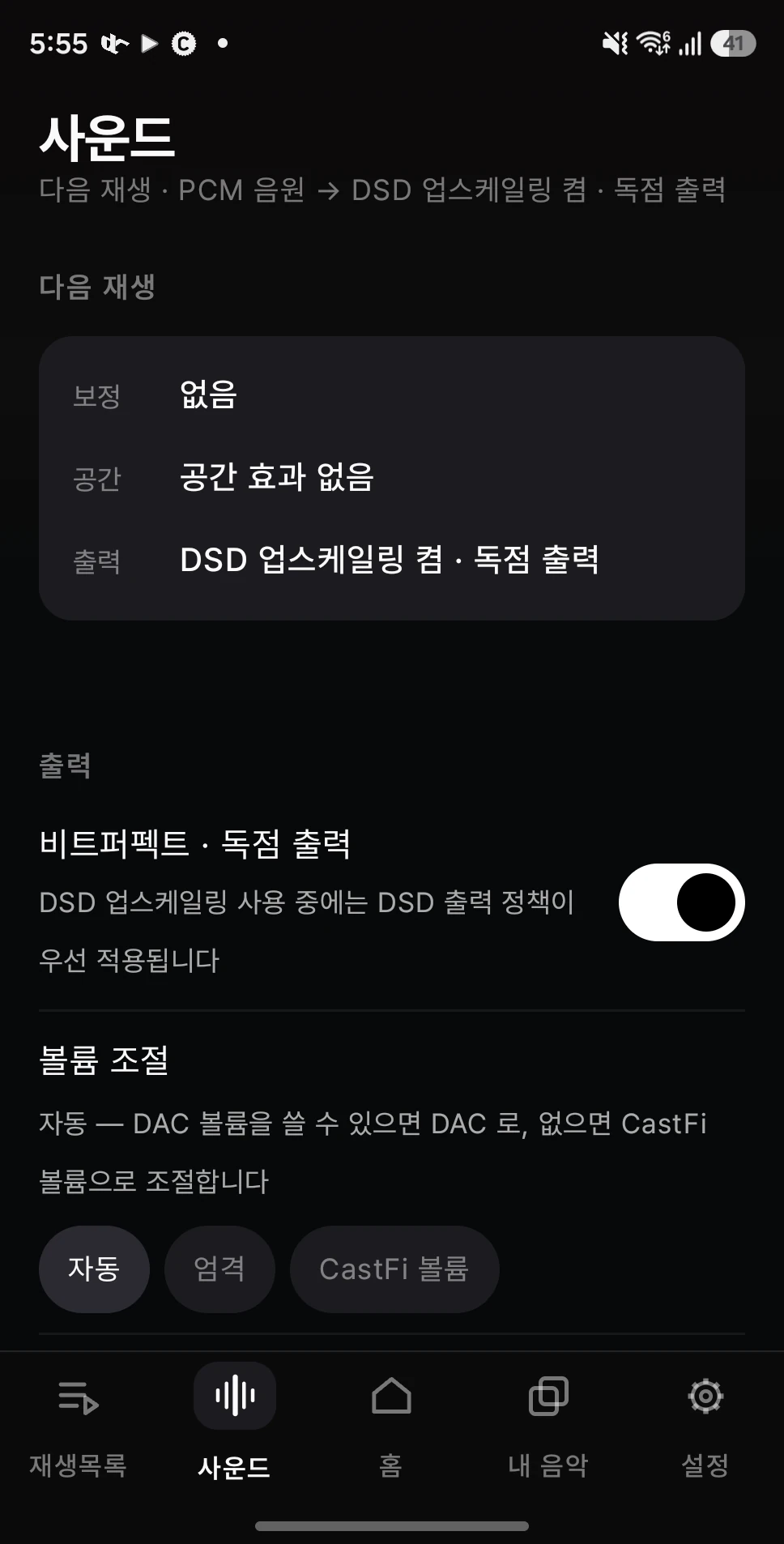
When a USB DAC is attached, CastFi claims the device and feeds it directly. Android's resampler is out of the way, so DSD leaves untouched and PCM keeps its original format.
- What is leaving now is written on screen. No guessing.
- Volume ownership — the DAC's own volume when it has one, the app's when it doesn't.
- Only while playing — the device is never held when nothing is playing.
Your files need not be DSD already
Common formats such as FLAC and WAV are converted to DSD on the way out. You need not hunt for DSD releases — your whole library takes the same path.
- Automatic rate — as high as the DAC accepts, weighed against the headroom the phone has.
- It says so when headroom runs out — it does not quietly downgrade and move on.
- Output policy first — while upsampling, the DSD output policy takes priority.
It starts from a measurement, not a hunch
Instead of nudging sliders until something sounds right, pick the model you own and CastFi fits its measured curve to a target. That is the step that makes it sound correct.
- Sound like another model — set a different headphone as the target.
- Harman target — the widely used reference curve is available as-is.
- AI EQ — describe the sound you want in words and it builds the curve.
- Precision EQ and presets — refine the result yourself and keep it.
Once it sounds correct, add what you like
Correction is the step that makes it right; what you add on top is a separate set of controls, named in plain language with no numbers to wrangle.
- Taste controls — bass, vocals, clarity and air.
- Space and effects — BASS+, CLEAR+, WIDE+, speaker space and crossfeed.
- Volume ownership — the DAC’s own volume when it has one, the app’s when it does not.
- Level compensation — perceived loudness stays put when settings change.
Send the sound to the room
The phone becomes the control point: it finds network players in your home and sends tracks to them, and plays the library on your NAS directly. All of it happens on your home network, never through a relay.
- Control network players — transport and volume from the phone.
- NAS streaming — reads ahead so large files don't stall.
- Self-healing — a brief network hiccup recovers on its own.
The things you actually use while listening
- Lock screen and notification controls — operate without waking the screen.
- DAP buttons and remotes — play, next and previous from a DAP’s hardware keys, wired earphones or Bluetooth remotes.
- Home widget — now playing and transport, right on the home screen.
- Tablets and foldables — list and player side by side on a wide screen.
- 12 languages — including Korean, English and Japanese, switchable in settings.
System requirements
| Item | Requirement |
|---|---|
| Android | 8.0 (API 26) or newer |
| USB DAC (optional) | A USB Audio Class 2.0 DAC and a device that supports OTG. Accepted formats vary by DAC |
| Network (optional) | PC, network player and NAS features need the same Wi-Fi |
| Cloud storage (optional) | OneDrive — a Microsoft account and an internet connection |
| PC (optional) | Windows 10 / 11 — only for remote control and importing tracks |
| CastFi sound for other apps (optional) | Android 10+ · a music app that allows playback capture · may be unavailable on some output devices |
| Languages | 12 languages (including Korean, English and Japanese) |
Start with the music already on your phone.
CastFi for Android is on Google Play (v0.5.5). Pair it with the Windows app to listen to your PC’s music away from home.